TV Content Guide
The TV content system lets you control what appears on your gym’s TV display when members aren’t actively working out. Show announcements, promotions, leaderboards, and branded content to keep your members engaged.
Who can use it: Group admins and owners can create and manage TV content.
How to access: Open your group page, tap the edit menu (pencil icon in the top-right), and select “TV Content”.
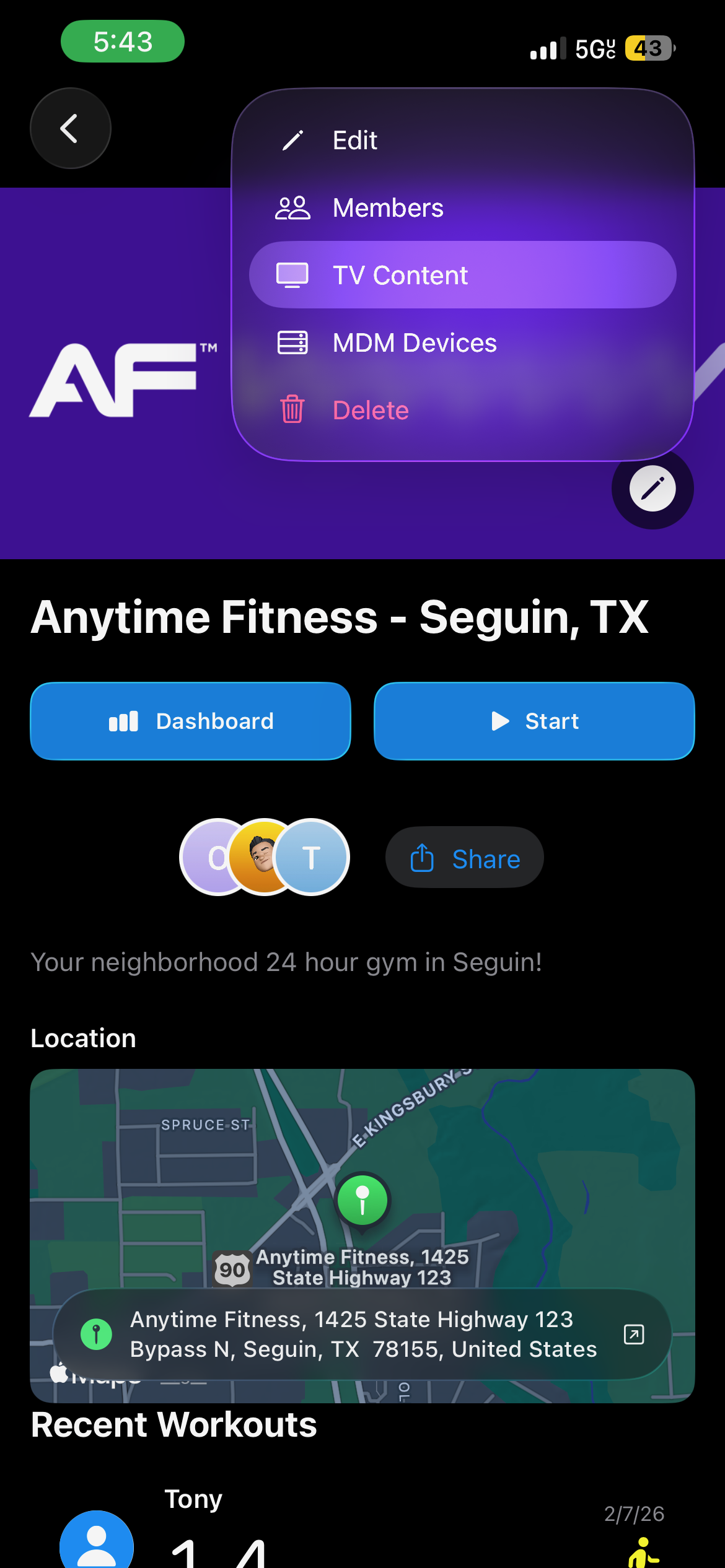
The TV Content Screen
The main TV Content screen is your hub for managing everything. From here you can access:
- Branding — Customize your gym’s display name, logo, and accent color
- Idle Mode — Control what shows when no one is working out
- Media Library — Upload and manage images and videos
- Announcements — Create and reorder your TV content
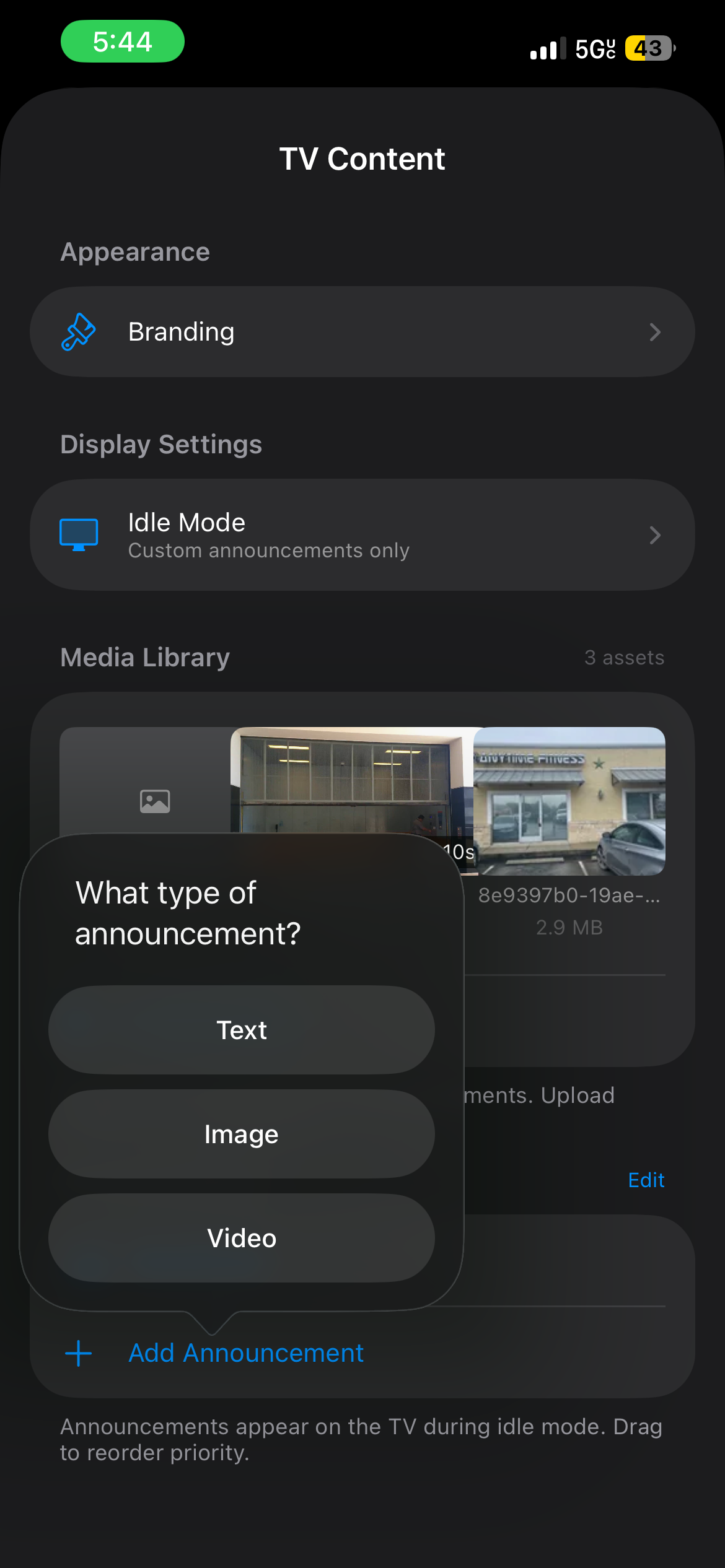
Creating Announcements
Tap “Add Announcement” at the bottom of the TV Content screen. You’ll be asked to choose a content type:
- Text — Simple text messages displayed on screen
- Image — A full-screen or card-style image from your media library
- Video — A looping video clip from your media library
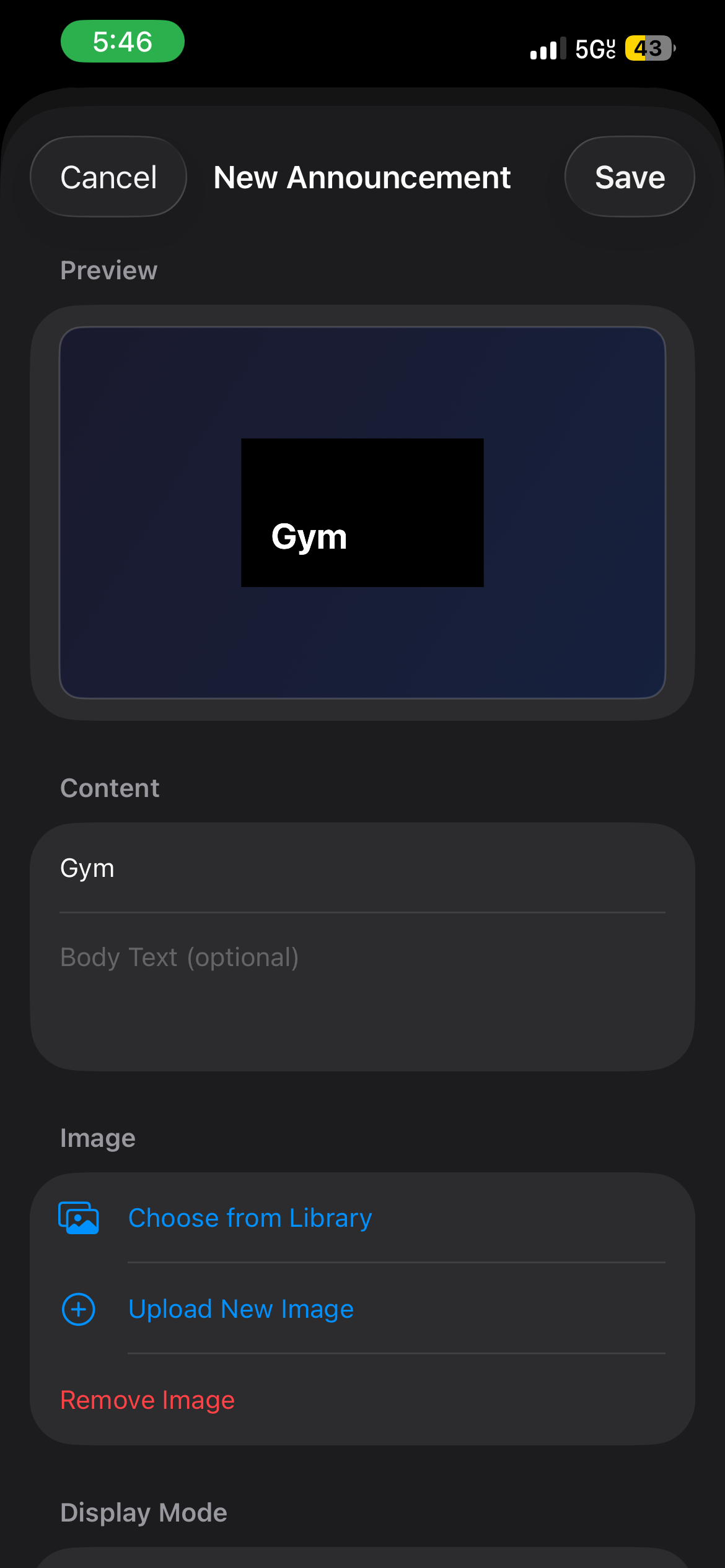
Key Fields
- Title (required) — The headline of your announcement
- Body (optional) — Additional detail or description
- Image/Video — Choose from your media library or upload new media
- Display Mode — Standard (card layout) or Fullscreen (media fills the screen with optional text overlay)
- Duration (5–60 seconds) — How long the announcement stays on screen
- Priority (0–10) — Higher priority announcements are shown more often
A live preview at the top of the editor shows exactly how your announcement will look on the TV.
Managing Media
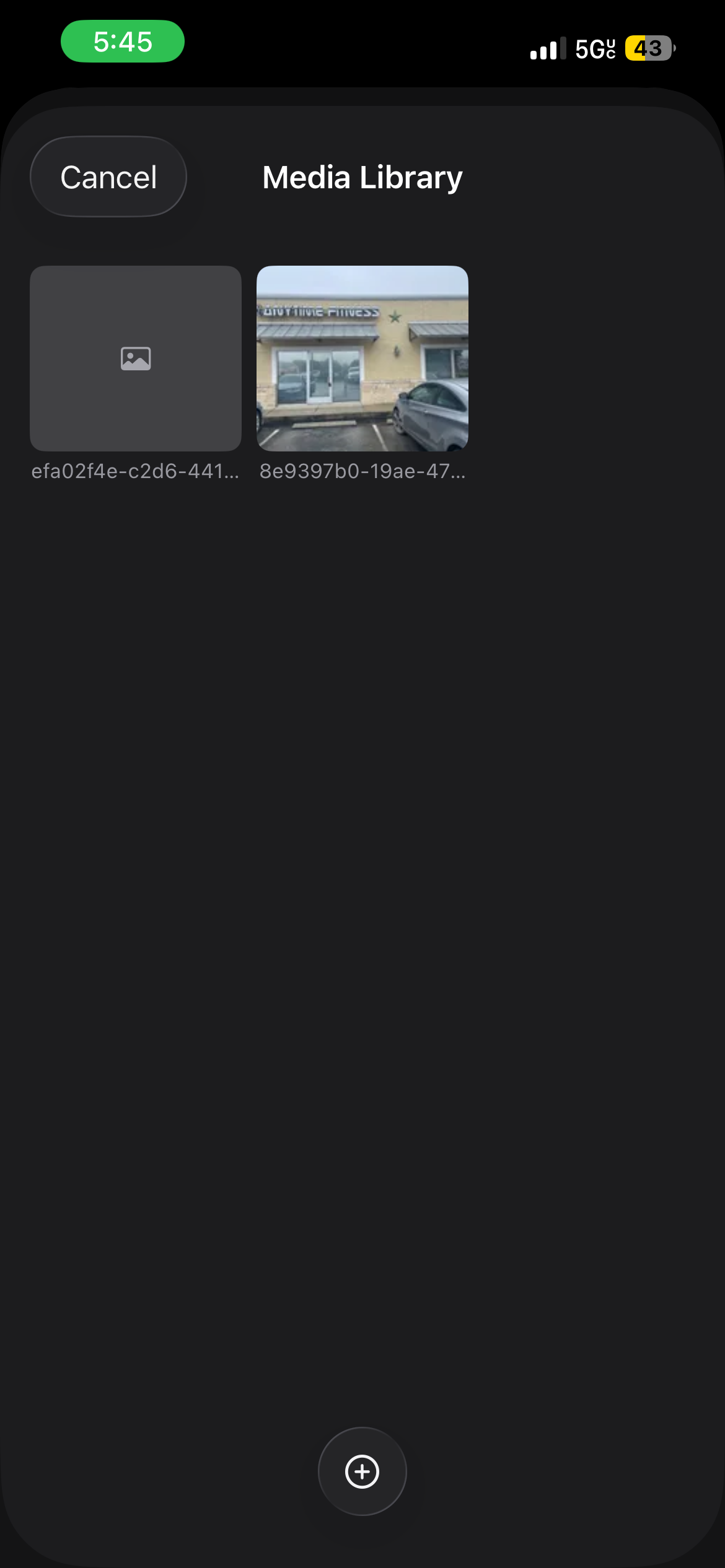
Upload images and videos to your media library, then attach them to announcements. Tap the + button to add new media.
- Images — JPG or PNG, up to 5 MB
- Videos — MP4, up to 50 MB
Your media library persists across announcements, so you can reuse the same image or video in multiple announcements without re-uploading.
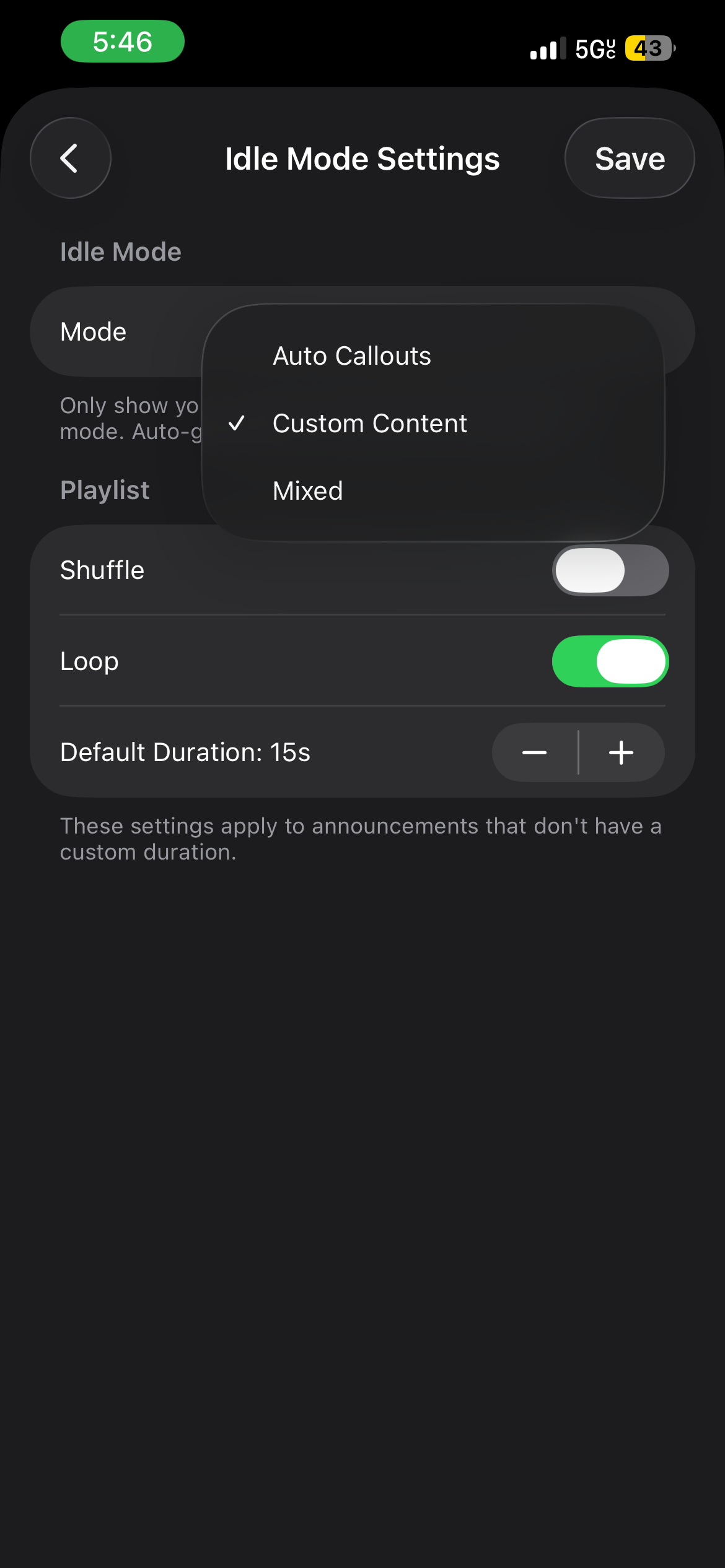
Idle Mode
Idle mode controls what the TV shows when no one is actively working out. Choose from three modes:
Auto Callouts (Default)
The system automatically generates engaging content like leaderboards, streak highlights, and new member welcomes.
Custom Content
Only your announcements are shown during idle time. Use this for full control over the display.
Mixed
A combination of auto callouts and your custom announcements.
Playlist Settings
You can also configure how announcements play back:
- Shuffle — Randomize the order of announcements
- Loop — Continuously cycle through announcements
- Default Duration — Set the default display time for announcements that don’t have a custom duration
Branding
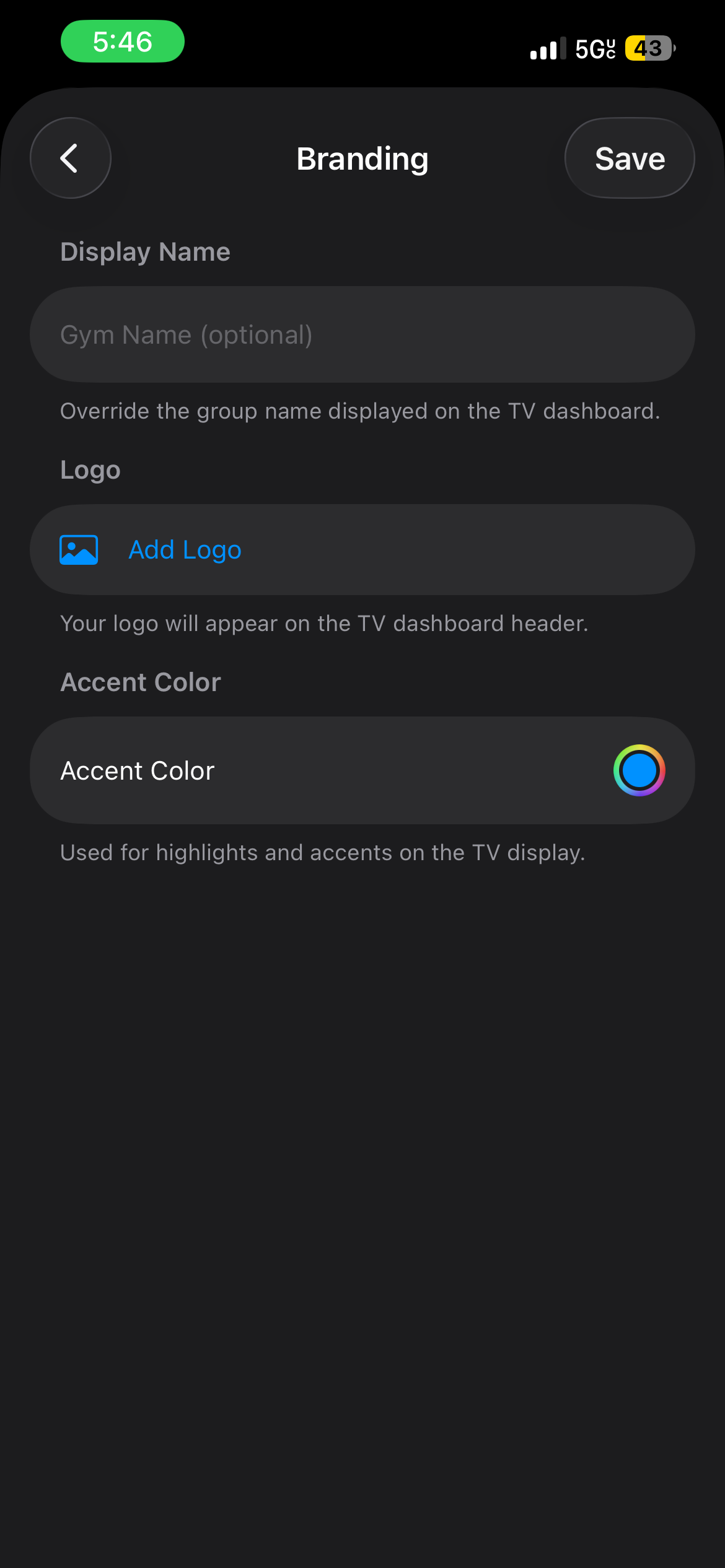
Customize the TV display to match your gym’s identity:
- Display Name — Override the default group name shown on the TV dashboard
- Logo — Upload your gym’s logo to appear on the TV dashboard header
- Accent Color — Pick a color used for highlights and accents on the display
Tips & Best Practices
- Keep text short — Members glance at the TV, they don’t read paragraphs. Aim for a headline and one sentence.
- Use high-contrast images — Dark or busy backgrounds make text overlays hard to read. Choose clean, bold visuals.
- Rotate content regularly — Stale announcements get ignored. Update your content at least weekly.
- Use priority strategically — Set important announcements to priority 8–10 and evergreen content to 3–5.
- Test on the TV display page first — Open the TV display in a browser to preview exactly how your content will look before putting it on the big screen.
- Recommended durations — Text-only: 8–15 seconds. Images: 10–20 seconds. Videos: match the clip length.
Frequently Asked Questions
Who can manage TV content? Only group admins and owners can create, edit, and delete TV content. Regular members can view the TV display but cannot modify what’s shown.
How do I open the TV display? From your group page, tap the TV icon or go to the TV display URL for your group. This opens a full-screen view designed for TVs and large monitors. You can cast it from a browser or use any device with a web browser connected to your TV.
Why isn’t my announcement showing? Check a few things: make sure the announcement is not disabled, confirm that its priority isn’t set to 0 (which effectively hides it from rotation), and verify the idle mode is set to “Custom Content” or “Mixed” if you’re using custom announcements.
Can I preview changes? Yes. The announcement editor shows a live preview at the top. You can also open the TV display page in your browser to see exactly what members will see — changes appear in real time.
What resolution should I use for images? For the best results, use images at 1920×1080 pixels (standard HD). The display will scale images to fit, but starting with HD resolution ensures they look sharp on large screens.